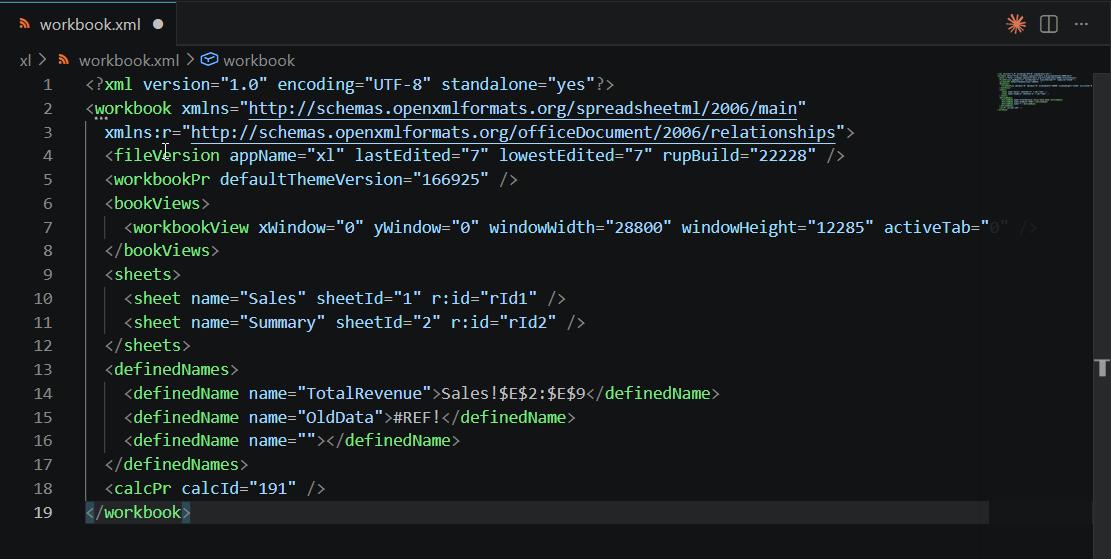
workbook-v1.xml,
workbook-v2.xml).
What a Healthy workbook.xml Looks Like
<?xml version="1.0" encoding="UTF-8" standalone="yes"?>
<workbook xmlns="http://schemas.openxmlformats.org/spreadsheetml/2006/main"
          xmlns:r="http://schemas.openxmlformats.org/officeDocument/2006/relationships">
  <fileVersion appName="xl" lastEdited="7"/>
  <bookViews>
    <workbookView xWindow="0" yWindow="0"
                  windowWidth="28800" windowHeight="12285"
                  activeTab="0"/>
  </bookViews>
  <sheets>
    <sheet name="Sales"   sheetId="1" r:id="rId1"/>
    <sheet name="Summary" sheetId="2" r:id="rId2"/>
  </sheets>
  <definedNames>
    <definedName name="TotalRevenue">Sales!$E$2:$E$9</definedName>
  </definedNames>
  <calcPr calcId="191"/>
</workbook>Broken Sheet Reference: rId Mismatch
Each
<sheet> entry has an
r:id that links it to a physical file via
workbook.xml.rels. If these IDs get out of sync, Excel cannot locate the sheet data.
Removed Part: /xl/worksheets/sheet2.xml part. (Worksheet)<!-- workbook.xml -->
<sheets>
<sheet name="Sales" sheetId="1" r:id="rId1"/>
<sheet name="Summary" sheetId="2" r:id="rId9"/> <!-- ← CORRUPT: rId9 does not exist -->
</sheets>
<!-- workbook.xml.rels only has rId1 and rId2 -->
<Relationships>
<Relationship Id="rId1" Target="worksheets/sheet1.xml"/>
<Relationship Id="rId2" Target="worksheets/sheet2.xml"/>
</Relationships>
Fix: Change
r:id="rId9" to
r:id="rId2" so it matches the relationship that actually exists in
workbook.xml.rels.
Invalid definedName: Broken Named Range
Named ranges that reference deleted sheets or moved data become
#REF! in the XML. A badly malformed
definedName can prevent the file from opening entirely.
Repaired Records: Named range from /xl/workbook.xml part<definedNames>
<definedName name="TotalRevenue">Sales!$E$2:$E$9</definedName>
<definedName name="OldRegion">#REF!</definedName> <!-- ← CORRUPT: invalid reference -->
<definedName name=""></definedName> <!-- ← CORRUPT: empty name is invalid -->
</definedNames>
Fix: Delete the corrupt
<definedName> entries entirely. Named ranges that no longer point to valid data should be removed rather than left as
#REF!.
<!-- Fixed -->
<definedNames>
  <definedName name="TotalRevenue">Sales!$E$2:$E$9</definedName>
</definedNames>Bad activeTab Value
The
activeTab attribute tracks which sheet is currently selected. If the value is higher than the number of sheets that exist, Excel errors on open.
<!-- workbook has 2 sheets: valid indexes are 0 and 1 -->

<workbookView xWindow="0" yWindow="0"
              windowWidth="28800" windowHeight="12285"
              activeTab="7"/>   <!-- ← CORRUPT: index 7 does not exist -->
Fix: Change
activeTab to a valid value.
activeTab="0" always works; it points to the first sheet.
<!-- Fixed -->
<workbookView activeTab="0"/>Duplicate sheetId Values
Each
<sheet> must have a unique
sheetId. Duplicates occur when sheets are copied by a tool that does not properly increment the counter.
<sheets>
  <sheet name="Sales"   sheetId="1" r:id="rId1"/>
  <sheet name="Summary" sheetId="1" r:id="rId2"/>  <!-- ← CORRUPT: duplicate sheetId="1" -->
  <sheet name="Archive" sheetId="3" r:id="rId3"/>
</sheets>
Fix: Make each
sheetId unique. Renumber sequentially starting from 1.
<!-- Fixed -->
<sheets>
  <sheet name="Sales"   sheetId="1" r:id="rId1"/>
  <sheet name="Summary" sheetId="2" r:id="rId2"/>
  <sheet name="Archive" sheetId="3" r:id="rId3"/>
</sheets>Checklist: How to Check workbook.xml in Your File
- Rename your XLSX to .zip and open it
-
Navigate to the
xlfolder, copyworkbook.xmlto your Desktop - Open in VS Code (with the Red Hat XML extension) and press Shift+Alt+F to format
-
Check that every
r:idin<sheets>has a matchingIdinworkbook.xml.rels -
Check that
activeTabvalue is less than the number of<sheet>entries (e.g. 2 sheets means valid values are 0 and 1) -
Check that all
sheetIdvalues are unique -
Look for any
<definedName>entries containing#REF!or an emptynameattribute