
sharedStrings-v1.xml,
sharedStrings-v2.xml).
Setting Up a Proper Editor
Notepad technically works but shows XML as one unreadable line. Use one of these instead:
VS Code (recommended; free)
After installing VS Code, also install the
XML extension by Red Hat (free, in the Extensions marketplace). This extension enables XML formatting, validation, and red-underline error highlighting. Once installed, open any XML file and press
Shift+Alt+F to auto-format it into readable indented structure.
Notepad++ (lighter weight; free)
Install the XML Tools plugin via the Plugin Manager, then use Plugins > XML Tools > Pretty Print to format.
Before formatting:
<?xml version="1.0"?><sst count="4" uniqueCount="4"><si><t>Product</t></si><si><t>Region</t></si></sst>After Format Document - same content, readable:
<?xml version="1.0"?>
<sst count="4" uniqueCount="4">
  <si><t>Product</t></si>
  <si><t>Region</t></si>
</sst>
The Three Rules of XML
Rule 1: Everything lives between tags
A tag is a word wrapped in angle brackets. Tags come in pairs: an opening tag and a closing tag. The closing tag has a forward slash. Everything between the two tags belongs to that element.
<sheetView tabSelected="1" workbookViewId="0">
</sheetView>
Rule 2: Tags can be self-closing
If a tag has nothing inside it, it can close itself with a slash before the final bracket. This is identical in meaning to an open/close pair with nothing between them.
<sheetView tabSelected="1" workbookViewId="0"/>Rule 3: Attributes live inside the opening tag
tabSelected="1" and
workbookViewId="0" are attributes - name/value pairs that modify what the tag means. The value is always in quotes.
Reading a Real Excel XML File
Here is a real
sheet1.xml snippet with annotations:
<sheetData>
  <row r="1" spans="1:3">          <!-- r="1" means this is row 1 -->

    <c r="A1" t="s">               <!-- cell at A1, type "s" = shared string -->
      <v>0</v>                     <!-- value is index 0 in sharedStrings.xml -->
    </c>                           <!-- NOT the literal number 0 -->

    <c r="B1" t="s">
      <v>1</v>                     <!-- index 1 in sharedStrings.xml -->
    </c>

    <c r="C1">                     <!-- no t attribute = plain number -->
      <v>42.5</v>                  <!-- literal value 42.5 -->
    </c>

    <c r="D1">
      <f>C1*1.1</f>                <!-- formula -->
      <v>46.75</v>                 <!-- last calculated result (cached) -->
    </c>

  </row>
</sheetData>t="s", the number inside
<v> is a lookup index into
sharedStrings.xml.
Changing
<v>0</v> to
<v>1</v> doesn't put the number 1 in the cell -
it changes which string from the lookup table is displayed.
Three Practical Edits
Edit 1: Change a Cell Value
For a
number cell (no
t attribute), the value inside
<v> is literal. Find the cell by its
r address and change it directly.
<!-- BEFORE -->
<c r="C1"><v>42.5</v></c>

<!-- AFTER: changed to 100 -->
<c r="C1"><v>100</v></c>
For a
text cell (
t="s"), the value is a sharedStrings index. To change the text, update the string in
sharedStrings.xml or point the cell at a different index.
<!-- sharedStrings.xml -->
<si><t>Product</t></si>    <!-- index 0 -->
<si><t>Item</t></si>       <!-- index 1 -->

<!-- To change cell A1 from "Product" to "Item": -->
<!-- BEFORE -->
<c r="A1" t="s"><v>0</v></c>

<!-- AFTER -->
<c r="A1" t="s"><v>1</v></c>
Edit 2: Remove a Broken Named Range
Open
xl/workbook.xml and find the
<definedNames> section. Delete the entire
<definedName> line for any broken entry.
<!-- BEFORE: OldData is broken, empty name is invalid -->
<definedNames>
  <definedName name="TotalRevenue">Sales!$E$2:$E$9</definedName>
  <definedName name="OldData">#REF!</definedName>
  <definedName name=""></definedName>
</definedNames>

<!-- AFTER: remove the two broken entries -->
<definedNames>
  <definedName name="TotalRevenue">Sales!$E$2:$E$9</definedName>
</definedNames>
Edit 3: Fix a Broken Style Index
Cells reference styles via the
s attribute. If
s points to an index that does not exist in
styles.xml, Excel errors.
<!-- styles.xml has cellXfs count="2" so valid indexes are 0 and 1 -->

<!-- BEFORE: s="47" does not exist -->
<c r="D5" s="47"><v>890</v></c>

<!-- AFTER: reset to default style -->
<c r="D5" s="0"><v>890</v></c>
What a VS Code XML Error Looks Like
When you save malformed XML and try to re-open the file in Excel, Excel prompts for repair. To catch errors before that, VS Code flags broken XML with red underlines as you type.
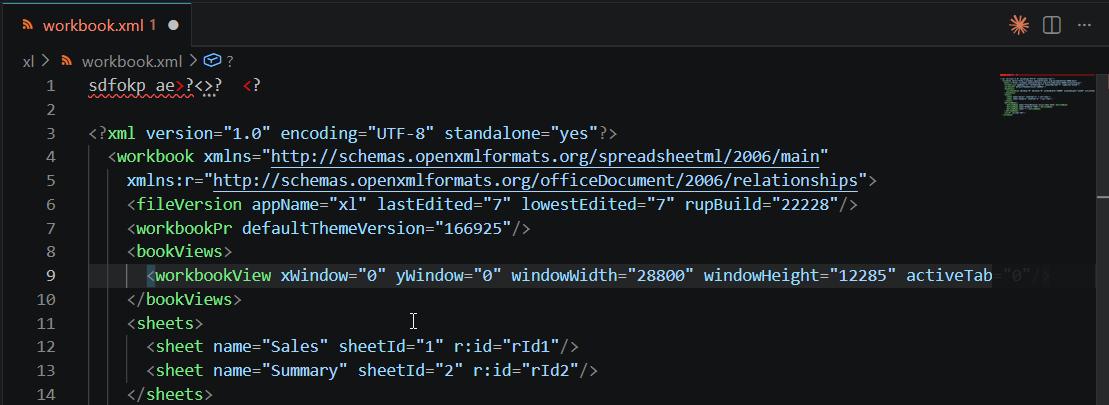
Common causes of red underlines in Excel XML:
-
A tag that was opened but never closed (
<c r="A1">with no</c>) -
A mismatched tag name (
<row>closed with</rows>) -
An unescaped special character inside a value (
&instead of&) -
A missing quote around an attribute value (
s=0instead ofs="0")
Saving and Re-Zipping
After making any edit:
- Save the XML file in your text editor
- Copy it back into the ZIP as described in Guide 1
-
Rename back to
.xlsx - Open in Excel and confirm no repair prompt appears
If Excel prompts for repair, re-open the XML in VS Code. Look for red underlines indicating parse errors and fix them before re-zipping.