
sheet1-v1.xml,
sheet1-v2.xml).
sheet1.xml,
sheet2.xml,
sheet3.xml. Excel will report an error if
any of them is corrupt. Apply the fixes below to every sheet file that shows a problem.
What a Healthy Worksheet XML File Looks Like
<?xml version="1.0" encoding="UTF-8" standalone="yes"?>
<worksheet xmlns="http://schemas.openxmlformats.org/spreadsheetml/2006/main"
           xmlns:r="http://schemas.openxmlformats.org/officeDocument/2006/relationships">
  <dimension ref="A1:E10"/>
  <sheetViews>
    <sheetView tabSelected="1" workbookViewId="0">
      <selection activeCell="A1" sqref="A1"/>
    </sheetView>
  </sheetViews>
  <sheetData>

    <row r="1" spans="1:5">                         <!-- row numbers must be ascending -->
      <c r="A1" t="s" s="1"><v>0</v></c>            <!-- t="s": shared string index -->
      <c r="B1" t="s" s="1"><v>1</v></c>
      <c r="C1" s="1"><v>12500</v></c>              <!-- plain number -->
    </row>

    <row r="2" spans="1:5">
      <c r="A2" t="s"><v>5</v></c>
      <c r="C2"><v>9200</v></c>
      <c r="D2"><f>C2*1.1</f><v>10120</v></c>       <!-- formula + cached value -->
    </row>

  </sheetData>
  <pageMargins left="0.75" right="0.75" top="1" bottom="1" header="0.5" footer="0.5"/>
</worksheet>
Key rules for a valid sheet:
-
Row
rvalues must be in ascending order -
Cell
rvalues must be valid Excel addresses (column letters then row number) - All opened tags must be closed
-
t="s"cells point to sharedStrings indexes, not literal values
Invalid Cell Address
The
r attribute on
<c> must be a valid Excel address. Missing, reversed, or duplicate addresses cause Excel to drop the cell.
Repaired Records: Cell information from /xl/worksheets/sheet1.xml part<c r=""><v>9200</v></c> <!-- ← CORRUPT: empty address -->
<c r="3C"><v>9200</v></c> <!-- ← CORRUPT: reversed format, should be C3 -->
<c r="A1"><v>100</v></c>
<c r="A1"><v>200</v></c> <!-- ← CORRUPT: duplicate address -->Fix: Correct the address format to standard notation (column letters then row number). Remove duplicate cell entries, keeping the one with the correct value.
<!-- Fixed -->
<c r="C3"><v>9200</v></c>
<c r="A1"><v>100</v></c>Rows Out of Order
<row> elements in
<sheetData> must appear in ascending order by
r value. Some third-party tools write rows out of order.
<sheetData>
  <row r="1" spans="1:5">...</row>
  <row r="3" spans="1:5">...</row>   <!-- ← CORRUPT: row 3 before row 2 -->
  <row r="2" spans="1:5">...</row>
  <row r="4" spans="1:5">...</row>
</sheetData>
What you will see: Excel may open the file but display data in wrong rows, or prompt for repair and discard the out-of-order rows entirely.
Fix: Reorder the
<row> blocks so
r values are ascending. In VS Code, cut and paste the blocks into the correct sequence.
<!-- Fixed -->
<sheetData>
  <row r="1" spans="1:5">...</row>
  <row r="2" spans="1:5">...</row>
  <row r="3" spans="1:5">...</row>
  <row r="4" spans="1:5">...</row>
</sheetData>Broken Formula Tag
A cell with a formula contains both
<f> (the formula) and
<v> (the last calculated value). Corruption takes two forms: a malformed formula, or a formula referencing something that no longer exists.
<c r="E2"><f>SUM(C2:D2</f><v>0</v></c>          <!-- ← unclosed function call -->
<c r="E3"><f></f><v>0</v></c>                    <!-- ← empty formula tag -->
<c r="E4"><f>DeletedSheet!A1+B2</f><v>0</v></c>  <!-- ← deleted sheet reference -->
What you will see:
#REF!,
#NAME?, or
0 in those cells.
Fix: For a formula you cannot reconstruct, remove the
<f> element entirely and leave just
<v> with the last known value. The cell will no longer recalculate but will display the preserved data.
<!-- Fixed: removed broken <f>, kept last known value -->
<c r="E2"><v>26300</v></c>
<c r="E3"><v>18950</v></c>Invalid Merge Cell Definition
Merged cells are defined in a
<mergeCells> block separate from the row data. Overlapping ranges, malformed range references, or a wrong
count attribute all trigger a repair.
Repaired Records: Merge cell information from /xl/worksheets/sheet1.xml<mergeCells count="3">
<mergeCell ref="A1:C1"/>
<mergeCell ref="B1:D1"/> <!-- ← CORRUPT: overlaps with A1:C1 -->
<mergeCell ref="E1:"/> <!-- ← CORRUPT: missing end of range -->
</mergeCells>
Fix: Remove overlapping or malformed entries. Update
count to match the number of valid
<mergeCell> entries that remain.
<!-- Fixed -->
<mergeCells count="1">
  <mergeCell ref="A1:C1"/>
</mergeCells>Orphaned Tag - Unclosed Element
An unclosed tag anywhere in the file breaks XML parsing for everything that follows it. In a large sheet, one missing
</c> can make thousands of rows of data unreadable.
<row r="4" spans="1:5">
  <c r="A4" t="s"><v>7</v></c>
  <c r="B4" t="s"><v>15</v>      <!-- ← CORRUPT: missing </c> -->
  <c r="C4"><v>15600</v></c>
  <c r="D4"><v>16200</v></c>
</row>
Fix: Add the missing closing tag.
<!-- Fixed -->
<c r="B4" t="s"><v>15</v></c>   <!-- added </c> -->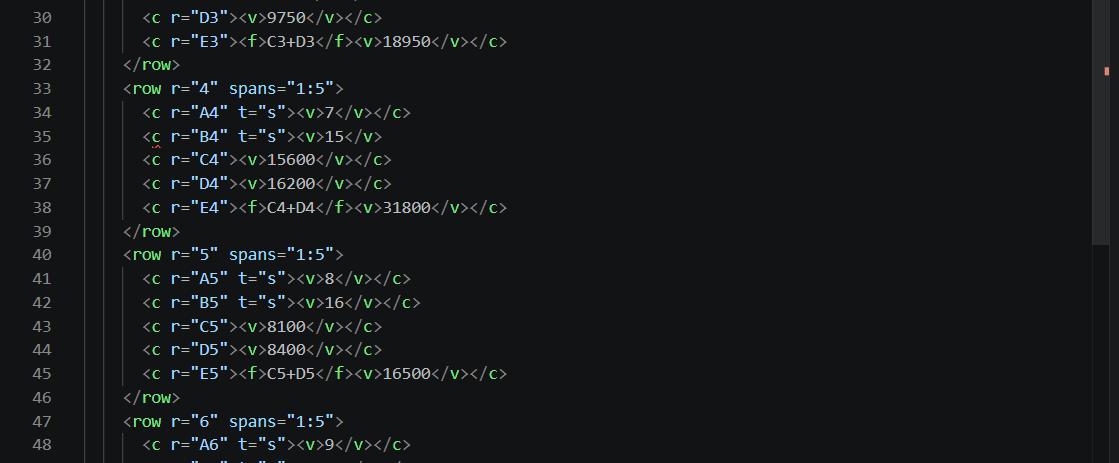
Using VS Code to Validate Large Sheet Files
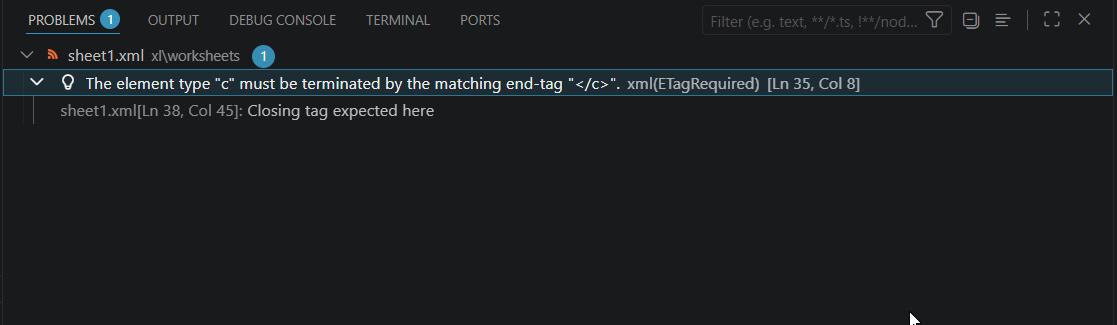
For large files, VS Code's XML extension is far faster than reading line by line. It validates the entire document and highlights every problem at once.
- Install the XML extension by Red Hat (free, in the Extensions marketplace)
-
Open your extracted
sheet1.xml - Open the Problems panel: View > Problems
- Every structural error is listed with a line and column number
Checklist: How to Check sheet1.xml in Your File
-
Rename your XLSX to .zip, navigate to
xl/worksheets/, and check how many sheet files exist (sheet1.xml,sheet2.xml, etc.); copy each one to your Desktop to inspect - Open in VS Code (with the Red Hat XML extension) and press Shift+Alt+F to format
- Check the Problems panel for any red errors
-
Verify row
rvalues appear in ascending order -
Look for any
<c>elements with an empty or reversedrattribute -
Check the
<mergeCells count="">value matches the actual number of<mergeCell>entries -
If you see formulas showing
0, check the<f>tags for unclosed parentheses or missing sheet references